
🧩 Multi-Wallet
Multi-Wallet lets you run several Olympus trading accounts side by side. Each wallet can copy its own set of leaders with its own settings, so you can separate strategies instead of mixing every copied trade into one account.
Use it when you want to:
- copy different traders from different wallets
- compare market-order and limit-order versions of the same copy strategy
- isolate higher-risk wallets from lower-risk wallets
- keep PnL curves clean for each account
- transfer funds between your own Olympus wallets when a wallet type supports it
Open Multi-Wallet from the app header or go directly to Multi-Wallet.
What the Page Shows
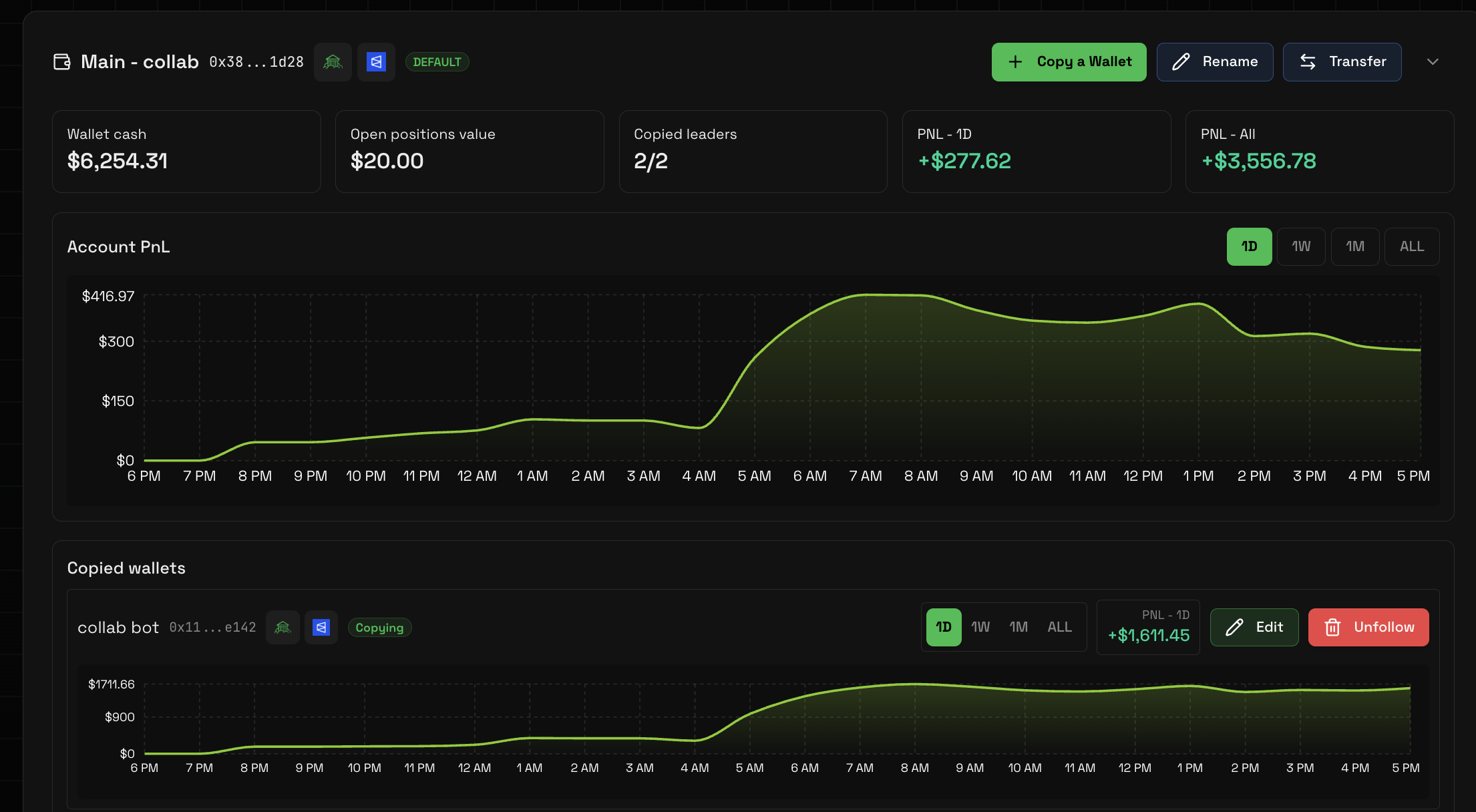
The Multi-Wallet page gives you an account-level view of your copy-trading setup.
You can see:
- total equity, cash, open-position value, and recent PnL across wallets
- each trading wallet connected to your Olympus account
- which copied wallets belong to each trading wallet
- per-wallet balances, positions, copied-wallet counts, and activity state
- PnL comparison charts for the account wallet and the wallet being copied
Copying With Multiple Wallets
Each copied wallet belongs to one of your trading wallets. This means two Olympus wallets can copy the same leader with different settings.
For example:
| Wallet | Copied leader | Strategy |
|---|---|---|
| Main wallet | Leader A | Smaller market orders with tighter risk limits |
| Test wallet | Leader A | Limit orders with different max price settings |
| Sports wallet | Leader B | Sports-only copy settings |
This keeps the results easier to read. If every experiment runs from one account, the position list and PnL chart can become hard to interpret.
Comparing PnL Curves
Use the PnL comparison chart as a copy-trading health check.
If your account curve roughly follows the copied wallet's curve over the same timeframe, Olympus is tracking that leader as expected. If the curves drift, review:
- wallet-specific trade ratio
- max trade size
- market or odds filters
- limit-order settings
- stop-loss and take-profit settings
- whether the copied wallet is paused
Some drift is normal when your sizing, balance, or filters differ from the leader. Large drift usually means your settings intentionally skipped trades or your wallet could not execute the same fills.
Managing Wallets
Use Multi-Wallet when you need to create, import, rename, remove, deposit to, withdraw from, transfer between, or compare trading wallets.
After a wallet exists, use the same Multi-Wallet page to decide what it copies and how it performs. Use the regular dashboard tabs for detailed positions, activity, and open orders.